FileRecover: Restore & QR
- 4.2
- Rating
- 100.00K
- Installs
- Free
- Price

 Analysis by App-foxy
FileRecover: Restore & QR is the kind of utility that makes a strong first impression because it gathers several small phone tasks in one place. I can use it to look for recoverable files, clear unwanted storage, scan QR codes and barcodes, and keep important files protected. That combination is more practical than it sounds: these are jobs I normally handle with separate tools, phone settings, or a quick search for another app.
After spending time with it, my view is more measured. The first week is likely to be the most exciting because the app gives you several useful tools immediately, but its lasting value depends on whether you regularly need file recovery, storage cleanup, scanning, or file protection. It is free, aimed at everyone, and made by notStudio, so it is easy to try without turning the decision into a financial commitment. The real question is whether this all-in-one approach remains convenient after the novelty wears off.
What the first week feels like
The appeal is simple: instead of opening a file manager for one problem, a storage cleaner for another, and a camera-based scanner for a third, I can begin with one tools app. That makes FileRecover: Restore & QR especially approachable for people who do not want to learn several utilities or compare different interfaces before doing a basic task.
You May Also Like

 Blood Strike: 2.5 Anniversary
Blood Strike’s Loadouts Turn Every Drop Into a Tactical Gamble
A close look at Blood Strike’s custom loadouts: how fast access to signature weapons reshapes its battle royale rhythm, rewards preparation, and narrows the gap between fights.

 Pandora - Music & Podcasts
Pandora’s Music Is Easy to Start, but Harder to Recover
Pandora’s strength is its low-effort path from a seed to a station. Its weak spot is how much confidence it asks you to place in connection, setup, and quiet recovery.

 8 Ball Pool
 Is Built on Rivalries, Rematches, and Routine
A close look at the rivalries, rematches, shared routines, and unanswered safety questions that turn a quick pool match into a persistent mobile community.

 Samsung Music
’s Quiet Strength Is Playing What You Already Own
Its reach comes less from spectacle than from dependable access to a personal library. That simplicity is both the app’s strongest retention engine and its ceiling.

 AccuWeather: Weather Radar
AccuWeather Review: A Quick, Clear Forecast for Everyday Decisions
For everyday plans, the best forecast is the one you can understand quickly. AccuWeather makes rain timing, radar, and local conditions easy to act on, with a few trade-offs.

 Hill Climb Racing
Why Hill Climb Racing Still Turns Crashes Into One More Run
A tiny car, a bumpy hill and one more upgrade: Hill Climb Racing keeps resurfacing because its simple chaos makes every near-miss feel personal.
More From Our News Desk



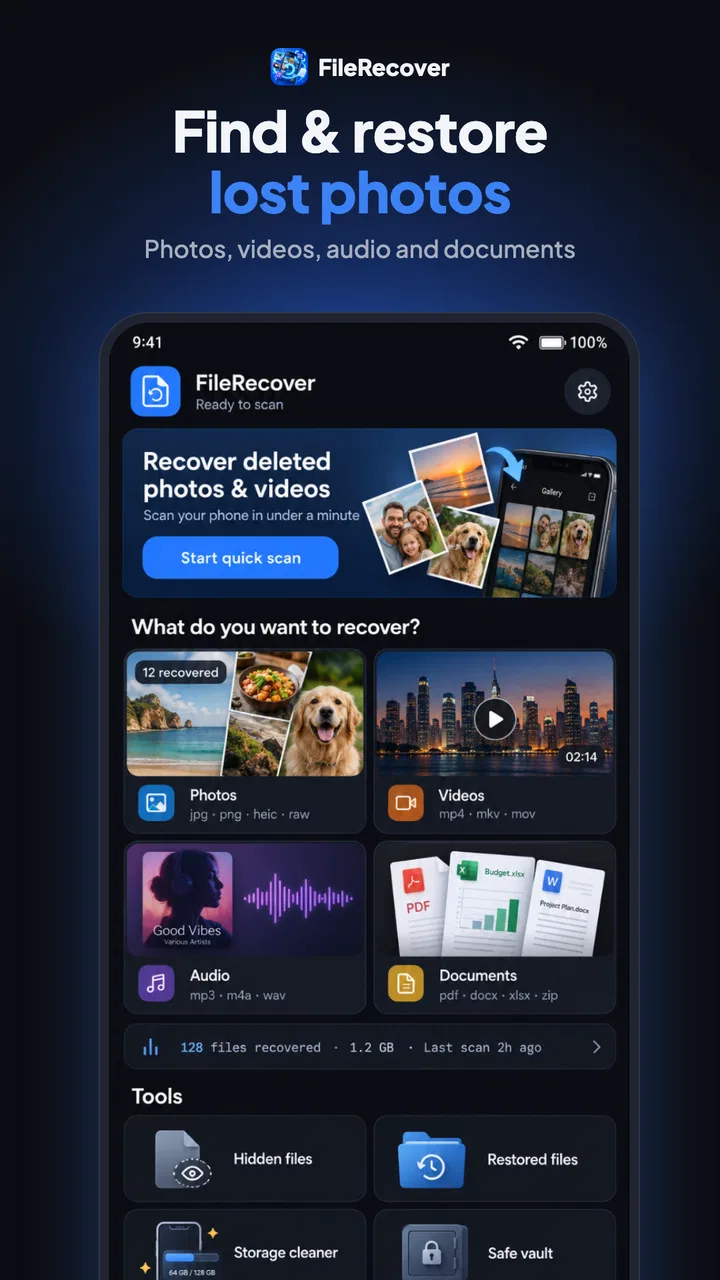
The file recovery function is the feature most likely to attract attention. When a document, image, or other file disappears by mistake, the first instinct is usually to search everywhere. A dedicated recovery area gives that search a clearer starting point. I would use it soon after deleting something important, rather than waiting until the phone has been filled with new downloads and media. Recovery is never a substitute for a backup, but having a focused place to check is more useful than relying on memory or randomly browsing folders.
There is an important distinction here. A recovery tool can help you look for files that are still discoverable, but it cannot turn accidental deletion into a guaranteed undo button. If a file has been overwritten, removed by a system process, or stored somewhere the app cannot inspect, expectations need to stay realistic. I see recovery as a first response, not a complete data-safety plan.
The storage-cleaning side is easier to fit into an ordinary routine. I would start by checking what the app identifies before removing anything. A cleaner is helpful when it reveals forgotten downloads, duplicate-looking items, or files that no longer matter, but the final decision should remain mine. The fastest option is not always the safest one, particularly when filenames are unclear or a folder contains work documents mixed with disposable material.
That leads to my first practical tip: use cleanup as an inspection step rather than a one-tap habit. Before confirming a deletion, open or preview the item when possible, check its location, and consider whether another app still needs it. This small pause is more valuable than saving a few seconds, because a cleaner can make clutter visible but cannot know the personal importance of every file.
The QR and barcode scanner gives the app an immediate everyday use. I can imagine using it on packaging, a product label, a printed sign, or a ticket-like code instead of switching to a separate scanner. Barcodes are useful when comparing an item or reading a product identifier, while QR codes often appear in menus, setup instructions, event material, and payment-related situations. Having scanning beside file tools makes the app feel broader than a recovery utility.
Still, scanning is not automatically safer just because it is convenient. I would check the destination or displayed information before opening anything unfamiliar. A QR code can point somewhere unexpected, so the useful workflow is scan first, inspect second, and continue only when the result makes sense. The app reduces the number of tools I need; it does not remove the need for ordinary caution.
The protection feature is another reason someone might keep the app installed. I would use it for files that are private but still needed on the phone, such as personal documents, saved images, or records that I do not want visible during casual browsing. The key habit is remembering what I protected and how to retrieve it later. A protection feature is only helpful if it remains understandable when I need a file quickly.
FileRecover: Restore & QR runs on Android eight point zero and later, which makes it accessible to people using older supported phones as well as more recent devices. Its current version is one point zero, so I would approach it as a relatively early release rather than a mature, deeply established utility. That does not make it unusable, but it does affect how much patience I would have for rough edges or a workflow that still feels like it is finding its shape.
Who gets the quickest benefit
I think the strongest early audience is someone whose phone has become disorganized and who wants a single starting point. If you have recently deleted a file, accumulated downloads, or needed to scan codes often, the combination can feel immediately worthwhile. It also suits less technical users who prefer a compact toolkit over several specialized apps with different menus and settings.
A realistic example is a busy week after moving files between a phone and a computer. I might download a document, scan a code from a printed instruction sheet, remove temporary files, and later realize that an image was deleted from the wrong folder. In that situation, having recovery, cleaning, scanning, and protection together saves me from remembering which separate app handles each task.
On the other hand, people who already use a dependable file manager, a trusted backup service, a built-in QR scanner, and a carefully managed security solution may find the overlap unnecessary. FileRecover: Restore & QR is most convincing when consolidation is the benefit. If you value specialized depth more than convenience, separate tools may remain better.
Will it still matter after the first month?
The month-to-month value is less about opening the app every day and more about having it available at the right moment. File recovery is usually occasional, storage cleanup becomes useful when clutter builds up, scanning is situational, and file protection depends on what I keep locally. That makes this a utility I would expect to use in short sessions rather than as a constant companion.
For me, the best long-term pattern would be a light monthly check. I would review storage, remove only items I recognize, confirm that protected files are still organized, and leave recovery for genuine mistakes instead of treating it as routine maintenance. This approach avoids turning the app into another source of notifications or unnecessary activity while still preserving its practical role.
There is a trade-off between convenience and specialization. A single app can reduce switching, but each individual tool may feel less central than a dedicated alternative. A file manager is usually the better place for detailed folder organization. A backup service is the better answer for preventing permanent loss. A phone’s built-in camera or system scanner may be quicker for a one-off QR code. FileRecover: Restore & QR earns its place when I want these functions grouped together, not when I expect it to replace every specialist.
The free price lowers the barrier to maintaining that occasional toolkit. I can keep it installed without scheduling a purchase decision, which matters for an app whose most important feature may be needed only once in a while. Its audience rating of Everyone also makes the positioning straightforward: it is presented as a general-purpose tool rather than something aimed at a narrow technical group.
Its early adoption is encouraging without being decisive. The app has passed one hundred thousand installs and holds a four point two average from around one thousand two hundred ratings. Those figures suggest that many people find the concept useful, but they do not tell me whether every feature works equally well for every phone or whether the app will become part of a lasting routine. I would treat the response as a reason to try it, not as a substitute for judging the workflow myself.
One of the more useful long-term habits is separating protection from recovery. I would protect files that I know I need, and I would use recovery only when something goes wrong. Relying on recovery for files that matter is risky because it changes a preventive problem into a rescue attempt. The app is more valuable when its protection and cleanup tools reduce future disorder instead of merely reacting to it.
Another tip is to clean before storage becomes urgent. When a phone is nearly full, I am more likely to delete quickly and regret it later. A calmer review, done while there is still room to think, makes it easier to distinguish temporary downloads from files worth keeping. This is a small workflow improvement, but it is where a multi-purpose utility can become genuinely useful rather than decorative.
How much maintenance it asks from me
The maintenance burden is moderate because the app covers tasks that are naturally intermittent. I would not expect to browse it daily. Its main responsibility is to remain understandable when I return after several weeks, especially when I am looking for a missing file or trying to free space in a hurry.
The burden rises if I use the cleaner without a personal filing system. No app can decide perfectly which files are safe to remove, and repeated scans can create a false feeling that storage management is solved automatically. I would still keep important material backed up elsewhere and use clear folders for files I intend to retain. The app can support that system, but it should not become the only layer protecting valuable data.
Protection also creates a small organizational cost. Once files are placed behind an extra step, I need to remember where they are and how to access them. That is worthwhile for privacy-sensitive material, but excessive for files I open constantly. My rule would be to protect selectively, not to hide the entire phone library. A tool that makes every file harder to reach can become frustrating even when its security purpose is sound.
The scanner has almost no recurring maintenance, but it can still affect how often I keep the app installed. If I scan codes only once every few months, a built-in phone feature may be more convenient because it is already available. FileRecover: Restore & QR becomes more attractive when scanning is part of a broader pattern of file handling, rather than its only job.
Because the app is at version one point zero, I would pay attention to how comfortable the basic flows feel over time. A utility earns lasting space when its core actions are predictable: find the right area, understand what will happen, review before deleting, and retrieve protected material without confusion. If any of those steps feel unclear, I would use the app only for the simpler tasks and keep a separate solution for important files.
Where fatigue can set in
The biggest source of fatigue is the all-in-one promise itself. At first, four related tools feel efficient. Later, I may wonder whether I am opening a general toolbox when a built-in feature would be faster. This is not a flaw unique to FileRecover: Restore & QR, but it is the central trade-off of its design. Convenience comes from consolidation, while speed and depth often come from specialization.
Recovery can also create disappointment if it is interpreted too broadly. I would not install the app believing that every deleted file will return. The sensible approach is to try recovery promptly, avoid filling the phone with new data after an accidental deletion, and maintain backups for anything irreplaceable. That workflow gives the feature a fair chance without asking it to perform miracles.
Cleaning can become tiring when the app surfaces many items that look disposable but require individual judgment. The safest cleaner is not necessarily the most aggressive one. I would rather spend a little longer reviewing uncertain files than accept a broad deletion and then search for a way to undo it. Users who want completely automatic maintenance may prefer a more integrated system tool, provided they are comfortable with its decisions.
File protection may cause friction when privacy and convenience pull in opposite directions. A protected document is safer from casual access, but it is also one step farther from the normal file flow. I would reserve the feature for material that genuinely benefits from separation. If I only need ordinary organization, a clear folder structure and a reliable backup may be less cumbersome.
There is also the question of trust. A tool that handles recovery, storage, scanning, and protected files becomes important enough that I would use it carefully. I would review each screen before granting access or confirming an action, avoid treating scan results as automatically trustworthy, and keep irreplaceable files in another safe location. These are not reasons to reject the app; they are the habits that prevent convenience from becoming carelessness.
For someone who wants a dedicated document manager, advanced backup controls, or a highly specialized security vault, I would point elsewhere. The same is true for a person who rarely handles local files and only needs to scan an occasional QR code. In those cases, the extra functions may add visual and mental clutter without solving a real problem.
By contrast, a user with a crowded phone, occasional deletion mistakes, and frequent scanning has a clearer reason to keep it. The app’s strength is not that each tool must beat every alternative. Its strength is that these particular needs can sit together in one accessible utility, with no purchase required to test whether that arrangement fits.
My long-term verdict
After the first-week appeal fades, I would keep FileRecover: Restore & QR installed only if I regularly benefit from the combination rather than from one isolated feature. Its lasting value comes from being ready for several small emergencies and maintenance jobs: a missing file, a crowded storage area, a code that needs scanning, or a document that deserves extra protection.
I would recommend it to friends who want a straightforward Android toolkit and do not already have a complete system for those jobs. I would especially suggest using it as part of a careful routine: inspect before cleaning, attempt recovery quickly, protect selectively, and keep separate backups for important material. Those habits make the app more dependable and reduce the chance of expecting too much from any single feature.
I would skip it if my phone’s built-in tools already cover everything I need or if I require professional-grade file management and backup. The app is not a replacement for a full data-safety strategy, and its early version means I would judge it by practical clarity rather than by assuming every workflow is fully mature.
Overall, this is a useful free tools app with a sensible everyday premise. It earns a place on my phone when consolidation saves me time, not simply because it offers many buttons. Its strongest long-term quality is convenience with a purpose: the functions are worth keeping together when they match the way I handle local files. With realistic expectations and a cautious cleanup habit, FileRecover: Restore & QR can remain a handy utility instead of becoming another app I install once and forget.
FAQs for FileRecover: Restore & QR
01What is FileRecover: Restore & QR, and what can it do?
FileRecover: Restore & QR is designed to help users look for recoverable files on an Android device while also providing QR-code scanning and related utilities. Its usefulness depends on how the files were deleted, whether they have been overwritten, and the permissions granted to the app. It should be viewed as a recovery assistant rather than a guaranteed solution for restoring every lost photo, video, document, or message.
02Can FileRecover: Restore & QR recover permanently deleted files?
The app may locate certain files that are still present in accessible storage areas or have not yet been overwritten, but permanent recovery is not guaranteed. Modern Android versions use storage restrictions and, in some cases, encryption that can limit scanning results. For the best chance of recovery, stop using the affected storage immediately, avoid installing additional apps, and save recovered files to a different location whenever possible.
03What permissions does FileRecover: Restore & QR require?
A recovery tool normally needs permission to access photos, videos, documents, or other media stored on the device. The QR feature may also request camera access to scan codes. Review each permission request carefully and grant only what is necessary for the feature you intend to use. If the app asks for unusually broad access, consider whether that access is appropriate before continuing.
04Is FileRecover: Restore & QR safe to use?
Safety depends on downloading the app from a legitimate store, checking its developer information, and reviewing its privacy policy and requested permissions. Avoid unofficial modified versions, and be cautious with recovery apps that promise guaranteed results or request sensitive access without a clear explanation. Before scanning or restoring files, it is also wise to back up important data and verify where recovered files will be saved.
05Does FileRecover: Restore & QR work on every Android device?
The app may behave differently depending on the Android version, manufacturer, storage type, and permission model used by the device. Newer Android releases can restrict access to folders and deleted data, while some recovery features may require additional system access or may work better with a memory card than with internal storage. Results can therefore vary considerably between phones and tablets.
Pros
- Simple interface makes recovery tools easy to find and use.
- QR scanning can quickly open links and read codes from saved images.
- Useful for checking whether deleted files may still be recoverable.
- Supports common file types for everyday recovery needs.
- Helpful preview options can reduce the chance of restoring the wrong file.
Cons
- Recovery results depend heavily on storage access and how long ago files were deleted.
- Some features may require intrusive permissions to scan device storage.
- Deep scans can take time and may consume noticeable battery power.
- Recovered files may lose their original names
- folders
- or metadata.
- Ads or paid limits may restrict frequent recovery and QR scanning use.

FileRecover: Restore & QR
Gallery